Authentication
Introduction
Apache Gravitino supports four kinds of authentication mechanisms: simple, Basic, OAuth and Kerberos.
If you don't enable authentication for your client and server explicitly, the user anonymous will be used to access the server.
Simple Mode
In simple mode, the client uses the value of the GRAVITINO_USER environment variable as the username.
If the environment variable GRAVITINO_USER in the client isn't set, the client defaults to the username of the user logged into the machine sending the requests.
For the client side, users can enable simple mode by the following code:
GravitinoClient client = GravitinoClient.builder(uri)
    .withMetalake("metalake")
    .withSimpleAuth()
    .build();
Additionally, the username can be directly used as a parameter to create a client.
GravitinoClient client = GravitinoClient.builder(uri)
    .withMetalake("metalake")
    .withSimpleAuth("test_user_name")
    .build();
When using curl or other HTTP clients, authenticate with the Authorization header:
curl -v -X GET \
  -H "Accept: application/vnd.gravitino.v1+json" \
  -H "Content-Type: application/json" \
  -H "Authorization: Basic $(echo -n 'admin:' | base64)" \
  http://localhost:8090/api/version
Basic Mode
In Basic mode, Gravitino verifies HTTP Basic credentials against built-in IDP user metadata stored in the relational entity store.
To enable Basic mode:
- Set
gravitino.authenticatorstobasic. - Set
gravitino.server.rest.extensionPackagestoorg.apache.gravitino.idp.web.rest.feature. - Set
gravitino.authorization.serviceAdminsto the service admin usernames that should exist in the built-in IDP.
Built-in IdP is incompatible with the simple authenticator (the default),
gravitino.authenticators must include basic and must not include simple.
- On the first startup, if any configured service admin does not yet have a password, set the
GRAVITINO_INITIAL_ADMIN_PASSWORDenvironment variable to the initial password (12 to 64 characters) before starting Gravitino. The same password is applied to every configured service admin that does not yet exist in the built-in IDP.
For the client side, enable Basic mode with the following code:
GravitinoClient client = GravitinoClient.builder(uri)
    .withMetalake("metalake")
    .withBasicAuth("admin", "YourSecureGravitinoPassword")
    .build();
from gravitino.auth.basic_auth_provider import BasicAuthProvider
from gravitino.client.gravitino_client import GravitinoClient

client = GravitinoClient(
    uri="http://localhost:8090",
    metalake_name="metalake",
    auth_data_provider=BasicAuthProvider("admin", "YourSecureGravitinoPassword"),
)
curl -v -X GET \
  -H "Accept: application/vnd.gravitino.v1+json" \
  -H "Content-Type: application/json" \
  -H "Authorization: Basic $(echo -n 'admin:YourSecureGravitinoPassword' | base64)" \
  http://localhost:8090/api/version
The Web UI uses the first entry in gravitino.authenticators from /configs. When it is basic,
the login page shows a username and password form backed by built-in IdP user metadata. See
built-in IDP Web UI.
OAuth Mode
Gravitino supports external OAuth 2.0 servers with two token validation methods:
- Static signing key validation - Uses a pre-configured signing key to validate JWT tokens
- JWKS-based validation - Dynamically fetches public keys from OAuth provider's JWKS endpoint (supports OIDC providers like Azure AD, and other JWKS-compatible providers)
To enable OAuth mode:
-
First, ensure the external OAuth 2.0 server supports Bearer JWT tokens.
-
For static key validation: Configure
gravitino.authenticator.oauth.defaultSignKey,gravitino.authenticator.oauth.serverUriandgravitino.authenticator.oauth.tokenPath. -
For JWKS validation: Configure
gravitino.authenticator.oauth.jwksUriandgravitino.authenticator.oauth.tokenValidatorClass=org.apache.gravitino.server.authentication.JwksTokenValidator. You can use eithergravitino.authenticator.oauth.provider=defaultorgravitino.authenticator.oauth.provider=oidcdepending on whether you want Web UI OIDC login flow. -
For Web UI OIDC authentication: Set
gravitino.authenticator.oauth.provider=oidcand configuregravitino.authenticator.oauth.clientId,gravitino.authenticator.oauth.authority, andgravitino.authenticator.oauth.scope. These settings are exposed to the Web UI via the/configsendpoint to enable OAuth login flow. Configure your OAuth provider with the callback redirect URI:https://your-gravitino-server/ui/oauth/callback.noteThe Web UI OIDC login uses the Authorization Code flow with PKCE, which depends on the browser Web Crypto API. Browsers only expose this API in a secure context, that is, when the Web UI is served over HTTPS or from
localhost. If you open the Web UI over plain HTTP on a non-localhosthost, login fails because the crypto primitives required for PKCE are unavailable. Serve the Web UI over HTTPS (or access it vialocalhost) for OIDC login to work. -
Next, for the client side, users can enable
OAuthmode by the following code:
DefaultOAuth2TokenProvider authDataProvider = DefaultOAuth2TokenProvider.builder()
    .withUri("oauth server uri")
    .withCredential("yy:xx")
    .withPath("oauth/token")
    .withScope("test")
    .build();

GravitinoClient client = GravitinoClient.builder(uri)
    .withMetalake("metalake")
    .withOAuth(authDataProvider)
    .build();
Kerberos Mode
To enable Kerberos mode, users must ensure that the server and client have the correct Kerberos configuration. On the server side, users should set gravitino.authenticators as kerberos and give
gravitino.authenticator.kerberos.principal and gravitino.authenticator.kerberos.keytab a proper value. For the client side, users can enable kerberos mode by the following code:
// Use keytab to create KerberosTokenProvider
KerberosTokenProvider provider = KerberosTokenProvider.builder()
        .withClientPrincipal(clientPrincipal)
        .withKeyTabFile(new File(keytabFile))
        .build();

// Use ticketCache to create KerberosTokenProvider
KerberosTokenProvider provider = KerberosTokenProvider.builder()
        .withClientPrincipal(clientPrincipal)
        .build();

GravitinoClient client = GravitinoClient.builder(uri)
    .withMetalake("metalake")
    .withKerberosAuth(provider)
    .build();
The Iceberg REST service does not support Kerberos authentication. The URI must be the server's hostname instead of its IP address.
Custom Mode
Gravitino also supports custom authentication implementations.
For server side, you can implement the interface Authenticator and specify gravitino.authenciators.
For client side, you extend the abstract class CustomTokenProvider and specify the token provider.
GravitinoClient client = GravitinoClient.builder(uri)
    .withMetalake("metalake")
    .withCustomProvider(provider)
    .build();
Principal Mapping
Gravitino supports principal mapping to transform authenticated principals (from OAuth or Kerberos) into user identities for authorization. By default, Gravitino uses regex-based mapping.
Group Mapping
Gravitino supports group mapping to transform authenticated groups (from OAuth) into Gravitino groups for authorization. By default, Gravitino uses regex-based mapping.
OAuth Group Mapping
For OAuth authentication, groups are extracted from JWT claims (configured via gravitino.authenticator.oauth.groupsFields). Customize how these groups are mapped:
# Use default regex mapper that extracts everything (passes through unchanged)
gravitino.authenticator.oauth.groupMapper = regex
gravitino.authenticator.oauth.groupMapper.regex.pattern = ^(.*)$

# Extract group from a complex string (e.g., /group -> group)
gravitino.authenticator.oauth.groupMapper = regex
gravitino.authenticator.oauth.groupMapper.regex.pattern = ^/(.*)


# Use custom group mapper implementation
gravitino.authenticator.oauth.groupMapper = com.example.MyCustomGroupMapper
Custom Group Mapper
For advanced use cases, implement the GroupMapper interface:
package com.example;

import org.apache.gravitino.UserGroup;
import org.apache.gravitino.auth.GroupMapper;
import java.util.Collections;
import java.util.List;
import java.util.Optional;
import java.util.stream.Collectors;

public class MyCustomGroupMapper implements GroupMapper {
  @Override
  public List<UserGroup> map(List<Object> groups) {
    if (groups == null) {
      return Collections.emptyList();
    }
    return groups.stream()
        .map(g -> new UserGroup(Optional.empty(), "mapped_" + g.toString()))
        .collect(Collectors.toList());
  }
}
Configure Gravitino to use your custom mapper:
gravitino.authenticator.oauth.groupMapper = com.example.MyCustomGroupMapper
OAuth Principal Mapping
For OAuth authentication, principals are extracted from JWT claims (configured via gravitino.authenticator.oauth.principalFields). Customize how these principals are mapped:
# Use default regex mapper that extracts everything (passes through unchanged)
gravitino.authenticator.oauth.principalMapper = regex
gravitino.authenticator.oauth.principalMapper.regex.pattern = ^(.*)$

# Extract username from email (e.g., user@example.com -> user)
gravitino.authenticator.oauth.principalMapper = regex
gravitino.authenticator.oauth.principalMapper.regex.pattern = ([^@]+)@.*

# Use custom mapper implementation
gravitino.authenticator.oauth.principalMapper = com.example.MyCustomPrincipalMapper
Custom Principal Mapper
For advanced use cases, implement the PrincipalMapper interface:
package com.example;

import org.apache.gravitino.auth.PrincipalMapper;
import java.security.Principal;

public class MyCustomPrincipalMapper implements PrincipalMapper {
  @Override
  public Principal map(String principal) {
    return () -> "mapped_" + principal;
  }
}
Configure Gravitino to use your custom mapper:
gravitino.authenticator.oauth.principalMapper = com.example.MyCustomPrincipalMapper
Kerberos Principal Mapping
For Kerberos authentication, principals follow the format primary[/instance][@REALM]. The default mapper extracts the primary component (username before @):
# Default: Extract primary component (user@REALM -> user, HTTP/server@REALM -> HTTP)
gravitino.authenticator.kerberos.principalMapper = regex
gravitino.authenticator.kerberos.principalMapper.regex.pattern = ([^@]+).*

# Extract only the first part before '/' (HTTP/server@REALM -> HTTP)
gravitino.authenticator.kerberos.principalMapper = regex
gravitino.authenticator.kerberos.principalMapper.regex.pattern = ([^/@]+).*
Custom Kerberos Principal Mapper
For advanced use cases, implement the PrincipalMapper interface:
package com.example;

import org.apache.gravitino.auth.KerberosPrincipal;
import org.apache.gravitino.auth.KerberosPrincipalMapper;
import org.apache.gravitino.auth.PrincipalMapper;

import java.security.Principal;

public class RealmBasedMapper implements PrincipalMapper {
  private final KerberosPrincipalMapper parser = new KerberosPrincipalMapper();

  @Override
  public Principal map(String principal) {
    // Parse Kerberos principal components
    KerberosPrincipal krbPrincipal = (KerberosPrincipal) parser.map(principal);

    // Route based on realm
    if ("DEV.EXAMPLE.COM".equals(krbPrincipal.getRealm().orElse(null))) {
      return () -> "dev_" + krbPrincipal.getName();
    } else if ("PROD.EXAMPLE.COM".equals(krbPrincipal.getRealm().orElse(null))) {
      return () -> "prod_" + krbPrincipal.getName();
    }

    // Default: use primary with instance (e.g., "HTTP/server")
    return () -> krbPrincipal.getPrimaryWithInstance();
  }
}
Configure Gravitino to use your custom mapper:
gravitino.authenticator.kerberos.principalMapper = com.example.RealmBasedMapper
Server Configuration
Gravitino server and Gravitino Iceberg REST server share the same configuration items, you doesn't need to add gravitino.iceberg-rest prefix for Gravitino Iceberg REST server.
| Configuration item | Description | Default value | Required | Since version |
|---|---|---|---|---|
gravitino.authenticator | It is deprecated since Gravitino 0.6.0. Please use gravitino.authenticators instead. | simple | No | 0.3.0 |
gravitino.authenticators | The authenticators which Gravitino uses, setting as simple, basic, oauth or kerberos. Multiple authenticators are separated by commas. If a request is supported by multiple authenticators simultaneously, the first authenticator will be used by default. | simple | No | 0.6.0-incubating |
gravitino.authenticator.oauth.serviceAudience | The audience name when Gravitino uses OAuth as the authenticator. | GravitinoServer | No | 0.3.0 |
gravitino.authenticator.oauth.allowSkewSecs | The JWT allows skew seconds when Gravitino uses OAuth as the authenticator. | 0 | No | 0.3.0 |
gravitino.authenticator.oauth.defaultSignKey | The signing key of JWT when Gravitino uses OAuth as the authenticator. | (none) | Yes if use oauth as the authenticator | 0.3.0 |
gravitino.authenticator.oauth.signAlgorithmType | The signature algorithm when Gravitino uses OAuth as the authenticator. | RS256 | No | 0.3.0 |
gravitino.authenticator.oauth.serverUri | The URI of the default OAuth server. Required when using StaticSignKeyValidator, not required for JWKS-based validators. | (none) | Yes if using StaticSignKeyValidator | 0.3.0 |
gravitino.authenticator.oauth.tokenPath | The path for token of the default OAuth server. Required when using StaticSignKeyValidator, not required for JWKS-based validators. | (none) | Yes if using StaticSignKeyValidator | 0.3.0 |
gravitino.authenticator.oauth.provider | OAuth provider type (default, oidc). Determines the Web UI authentication flow. Use 'oidc' for Web UI OIDC login, 'default' for legacy login or API-only authentication. | default | No | 1.0.0 |
gravitino.authenticator.oauth.clientId | OAuth client ID for Web UI authentication. | (none) | Yes if provider is oidc | 1.0.0 |
gravitino.authenticator.oauth.authority | OAuth authority/issuer URL for OIDC providers for web UI authentication. (e.g., Azure AD tenant URL). | (none) | Yes if provider is oidc | 1.0.0 |
gravitino.authenticator.oauth.scope | OAuth scopes for Web UI authentication (space-separated). | (none) | Yes if provider is oidc | 1.0.0 |
gravitino.authenticator.oauth.jwksUri | JWKS URI for server-side OAuth token validation. Required when using JWKS-based validation. | (none) | Yes if tokenValidatorClass is org.apache.gravitino.server.authentication.JwksTokenValidator | 1.0.0 |
gravitino.authenticator.oauth.principalFields | JWT claim field(s) to use as principal identity. Comma-separated list for fallback in order (e.g., 'preferred_username,email,sub'). | sub | No | 1.0.0 |
gravitino.authenticator.oauth.groupsFields | JWT claim field(s) to use as group membership. Comma-separated list for fallback in order (e.g., 'groups,roles'). | groups | No | 1.3.0 |
gravitino.authenticator.oauth.tokenValidatorClass | Fully qualified class name of the OAuth token validator implementation. Use org.apache.gravitino.server.authentication.JwksTokenValidator for JWKS-based validation or org.apache.gravitino.server.authentication.StaticSignKeyValidator for static key validation. | org.apache.gravitino.server.authentication.StaticSignKeyValidator | No | 1.0.0 |
gravitino.authenticator.oauth.principalMapper | Principal mapper type for OAuth. Use 'regex' for regex-based mapping, or provide a fully qualified class name implementing org.apache.gravitino.auth.PrincipalMapper. | regex | No | 1.2.0 |
gravitino.authenticator.oauth.principalMapper.regex.pattern | Regex pattern for OAuth principal mapping. First capture group becomes the mapped principal. Only used when principalMapper is 'regex'. | ^(.*)$ | No | 1.2.0 |
gravitino.authenticator.oauth.groupMapper | Group mapper type for OAuth. Use 'regex' for regex-based mapping, or provide a fully qualified class name implementing org.apache.gravitino.auth.GroupMapper. | regex | No | 1.3.0 |
gravitino.authenticator.oauth.groupMapper.regex.pattern | Regex pattern for OAuth group mapping. First capture group becomes the mapped group. Only used when groupMapper is 'regex'. | ^(.*)$ | No | 1.3.0 |
gravitino.authenticator.kerberos.principal | Indicates the Kerberos principal to be used for HTTP endpoint. Principal should start with HTTP/. | (none) | Yes if use kerberos as the authenticator | 0.4.0 |
gravitino.authenticator.kerberos.keytab | Location of the keytab file with the credentials for the principal. | (none) | Yes if use kerberos as the authenticator | 0.4.0 |
gravitino.authenticator.kerberos.principalMapper | Principal mapper type for Kerberos. Use 'regex' for regex-based mapping, or provide a fully qualified class name implementing org.apache.gravitino.auth.PrincipalMapper. | regex | No | 1.2.0 |
gravitino.authenticator.kerberos.principalMapper.regex.pattern | Regex pattern for Kerberos principal mapping. First capture group becomes the mapped principal. Only used when principalMapper is 'regex'. | ([^@]+).* | No | 1.2.0 |
The signature algorithms that Gravitino supports follows:
| Name | Description |
|---|---|
| HS256 | HMAC using SHA-25A |
| HS384 | HMAC using SHA-384 |
| HS512 | HMAC using SHA-51 |
| RS256 | RSASSA-PKCS-v1_5 using SHA-256 |
| RS384 | RSASSA-PKCS-v1_5 using SHA-384 |
| RS512 | RSASSA-PKCS-v1_5 using SHA-512 |
| ES256 | ECDSA using P-256 and SHA-256 |
| ES384 | ECDSA using P-384 and SHA-384 |
| ES512 | ECDSA using P-521 and SHA-512 |
| PS256 | RSASSA-PSS using SHA-256 and MGF1 with SHA-256 |
| PS384 | RSASSA-PSS using SHA-384 and MGF1 with SHA-384 |
| PS512 | RSASSA-PSS using SHA-512 and MGF1 with SHA-512 |
Example: Basic authentication
This example shows how to enable built-in Basic authentication.
Prerequisites:
- Gravitino distribution package (includes the idp-basic plugin on the server classpath)
Built-in IdP is incompatible with the simple authenticator (the default),
gravitino.authenticators must include basic and must not include simple.
Configuration:
Append the following to conf/gravitino.conf:
gravitino.authenticators = basic
gravitino.server.rest.extensionPackages = org.apache.gravitino.idp.web.rest.feature
gravitino.authorization.serviceAdmins = admin
On the first startup, if the admin service admin does not yet have a password in the store,
set initial passwords before starting the server:
export GRAVITINO_INITIAL_ADMIN_PASSWORD='YourSecureGravitinoPassword'
./bin/start-gravitino.sh
Usage:
curl -v -X GET \
  -H "Accept: application/vnd.gravitino.v1+json" \
  -H "Content-Type: application/json" \
  -H "Authorization: Basic $(echo -n 'admin:YourSecureGravitinoPassword' | base64)" \
  http://localhost:8090/api/version
If the service admin already has a password, you do not need to set
GRAVITINO_INITIAL_ADMIN_PASSWORD on restart. Gravitino does not change existing passwords
when the server starts again.
Example: Azure AD as OIDC Provider with JWKS Validation
This example shows how to configure Gravitino with Azure AD using JWKS-based token validation.
Prerequisites:
- Azure AD tenant with an application registration (Single-page application)
- Application configured with:
- Client ID (Application ID)
- Platform configuration: Single-page application (SPA)
- Redirect URI:
https://your-gravitino-server/ui/oauth/callback - Required API permissions/scopes (typically
openid,profile,email)
Configuration:
# Enable OAuth authentication
gravitino.authenticators = oauth

# OIDC Provider Configuration for Web UI
gravitino.authenticator.oauth.provider = oidc
gravitino.authenticator.oauth.clientId = <your-azure-app-client-id>
gravitino.authenticator.oauth.authority = https://login.microsoftonline.com/<your-tenant-id>/v2.0
gravitino.authenticator.oauth.scope = openid profile email

# JWKS-based Token Validation
gravitino.authenticator.oauth.jwksUri = https://login.microsoftonline.com/<your-tenant-id>/discovery/v2.0/keys
gravitino.authenticator.oauth.tokenValidatorClass = org.apache.gravitino.server.authentication.JwksTokenValidator
gravitino.authenticator.oauth.serviceAudience = <your-azure-app-client-id-or-api-identifier>
gravitino.authenticator.oauth.principalFields = preferred_username,email,sub
Usage:
- Web UI: Navigate to Gravitino Web UI, which will redirect to Azure AD for authentication
- API Access: Use Azure AD tokens in the
Authorization: Bearer <token>header
Azure AD v2.0 Endpoint (Recommended):
The authority must use the v2.0 endpoint (/v2.0 suffix) to match the v2.0 JWKS URI. This ensures that tokens issued during OIDC discovery use the correct token format and issuer claim that matches your JWKS configuration.
Alternative: Azure AD v1.0 Endpoint: For legacy applications or organizational policies requiring v1.0 tokens, use:
gravitino.authenticator.oauth.authority = https://sts.windows.net/<your-tenant-id>/
gravitino.authenticator.oauth.jwksUri = https://login.microsoftonline.com/<your-tenant-id>/discovery/v2.0/keys
Azure AD uses the same signing keys for both v1.0 and v2.0, so v2.0 JWKS can validate v1.0 tokens.
Important: Do NOT use https://login.microsoftonline.com/<tenant-id>/ (without /v2.0) as the authority when using v2.0 JWKS. This causes an issuer mismatch: the token will have iss: "https://sts.windows.net/..." but the server expects iss: "https://login.microsoftonline.com/...".
Service Audience:
The serviceAudience should match the aud claim in your Azure AD tokens. This is typically your Azure AD application's client ID, but could be a custom API identifier if you've configured custom API scopes (e.g., api://<client-id>).
Principal Fields:
The principalFields supports multiple fallback options. Gravitino will try each field in order (e.g., first preferred_username, then email, then sub) until it finds a non-null value to use as the user identity.
With JWKS validation, you don't need to configure defaultSignKey, serverUri, or tokenPath as the validator dynamically fetches public keys from Azure AD's JWKS endpoint.
:::
Example: Static Key OAuth Provider
For compatibility with existing OAuth servers that don't support JWKS:
gravitino.authenticators = oauth
gravitino.authenticator.oauth.provider = default
gravitino.authenticator.oauth.clientId = test
gravitino.authenticator.oauth.scope = test
gravitino.authenticator.oauth.serviceAudience = test
gravitino.authenticator.oauth.tokenValidatorClass = org.apache.gravitino.server.authentication.StaticSignKeyValidator
gravitino.authenticator.oauth.serverUri = http://your-oauth-server
gravitino.authenticator.oauth.tokenPath = /oauth2/token
gravitino.authenticator.oauth.defaultSignKey = <your-static-signing-key>
Example: JWKS Validation with Default Provider
For JWKS-based token validation without Web UI OIDC workflow:
gravitino.authenticators = oauth
gravitino.authenticator.oauth.provider = default
gravitino.authenticator.oauth.serviceAudience = <your-audience>
gravitino.authenticator.oauth.tokenValidatorClass = org.apache.gravitino.server.authentication.JwksTokenValidator
gravitino.authenticator.oauth.jwksUri = https://your-oauth-provider/.well-known/jwks.json
Example
Follow these steps to set up an OAuth mode Gravitino server:
-
Prerequisite
You need to install the JDK8 and Docker.
-
Set up an external OAuth 2.0 server
There is a sample-authorization-server based on spring-authorization-server. The image has registered client information in the external OAuth 2.0 server and its clientId is
test, secret istest, scope istest.
docker run -p 8177:8177 --name sample-auth-server -d datastrato/sample-authorization-server:0.3.0
-
Open the JWK URL of the Authorization server in the browser and you can get the JWK.

-
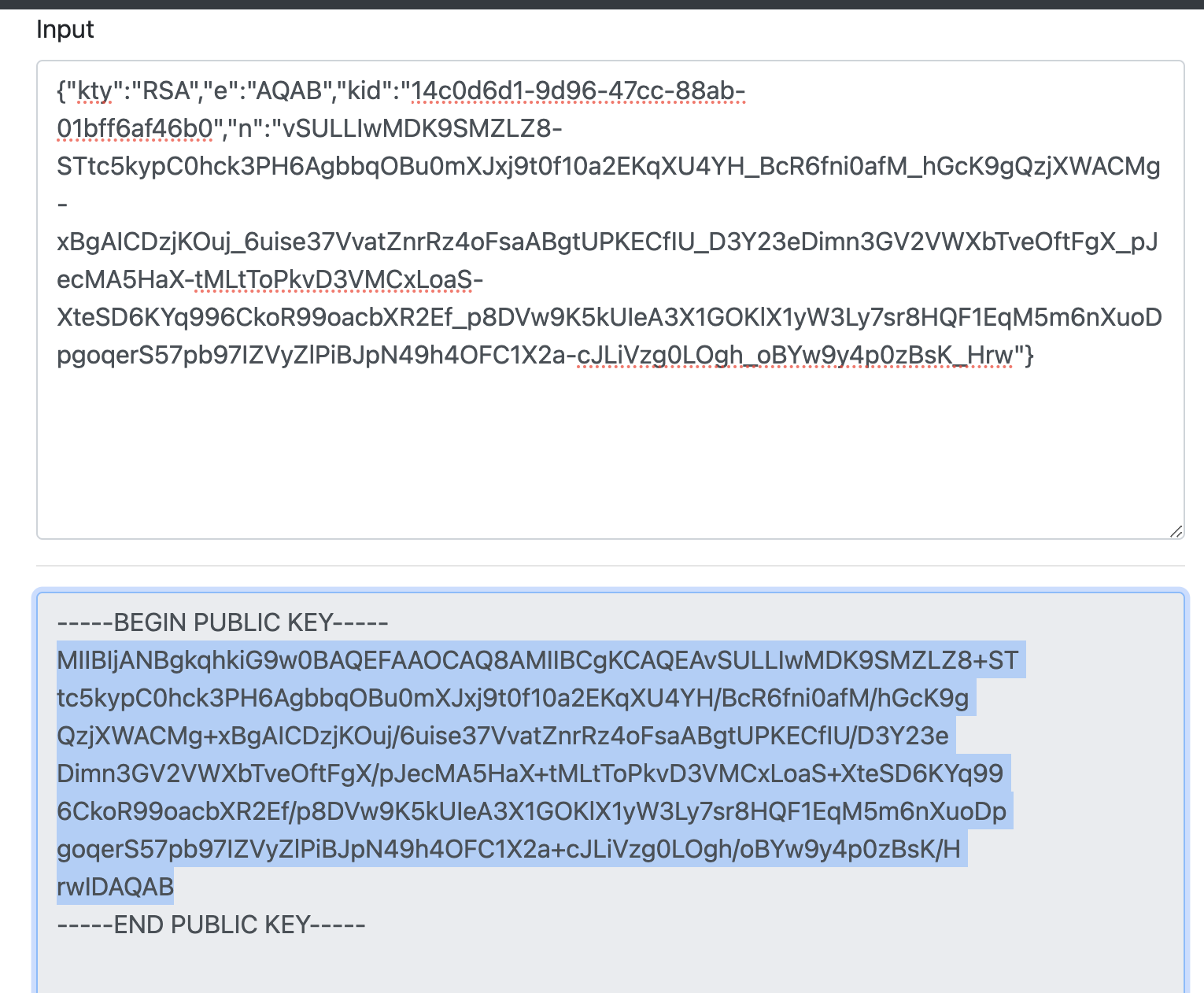
Convert the JWK to PEM. You can use the online tool or other tools.
-
Copy the public key and remove the character
\nand you can get the default signing key of Gravitino server. -
Refer to the Configurations and append the configurations to the conf/gravitino.conf.
gravitino.authenticators = oauth
gravitino.authenticator.oauth.serviceAudience = test
gravitino.authenticator.oauth.defaultSignKey = <the default signing key>
gravitino.authenticator.oauth.tokenPath = /oauth2/token
gravitino.authenticator.oauth.serverUri = http://localhost:8177
-
Open the URL of Gravitino server and login in with clientId
test, clientSecrettest, and scopetest.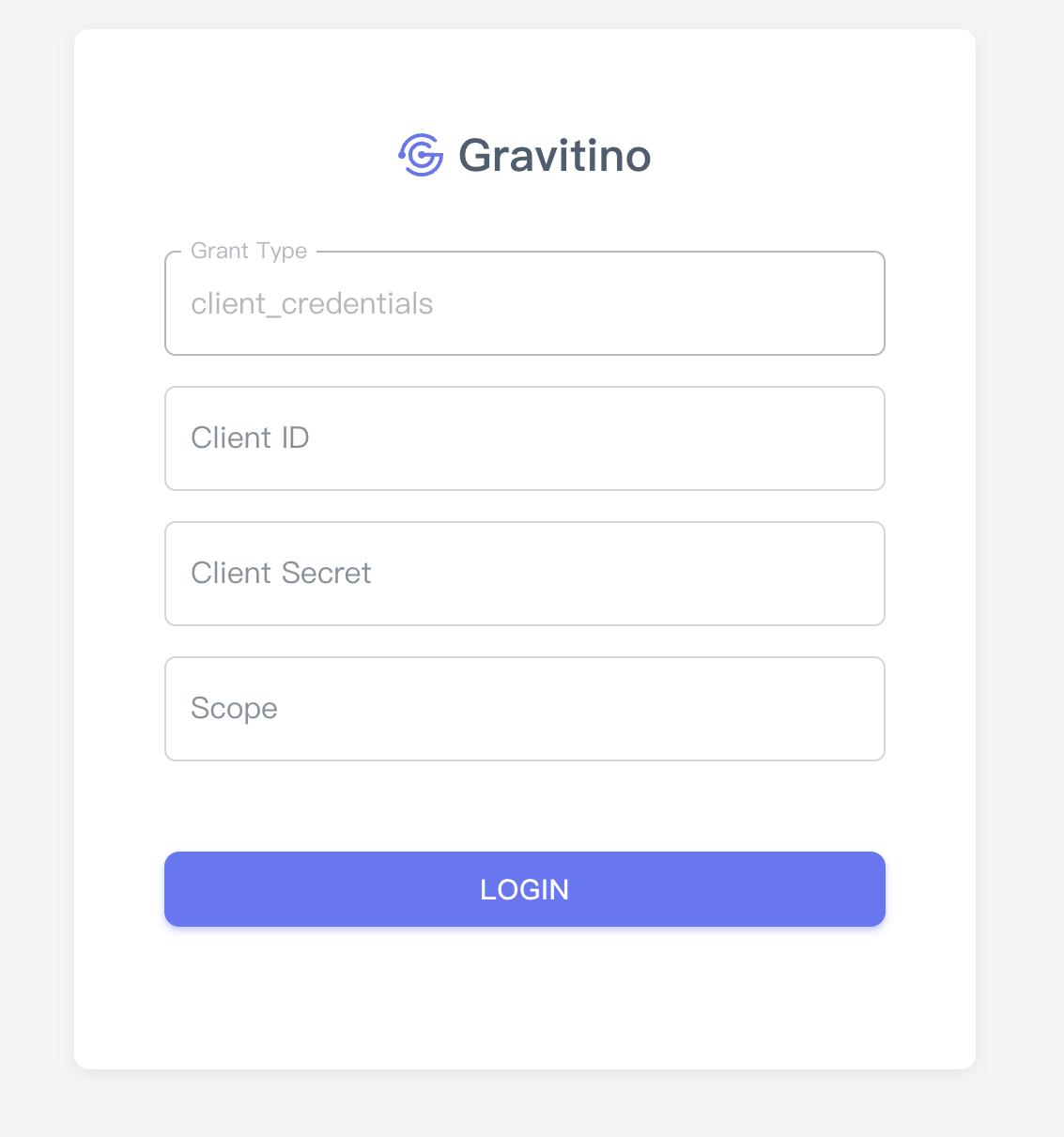
-
Use the curl command to access Gravitino.
Get access token
curl --location --request POST 'http://127.0.0.1:8177/oauth2/token?grant_type=client_credentials&client_id=test&client_secret=test&scope=test'
Use the access token to request the Gravitino
curl -v -X GET -H "Accept: application/vnd.gravitino.v1+json" -H "Content-Type: application/json" -H "Authorization: Bearer <access_token>" http://localhost:8090/api/version
Configure Keycloak as an OAuth Provider
- Set up an external Keycloak server, you can refer to Keycloak document
docker run -dti -p 8080:8080 -e KC_BOOTSTRAP_ADMIN_USERNAME=admin -e KC_BOOTSTRAP_ADMIN_PASSWORD=admin quay.io/keycloak/keycloak:26.2.5 start-dev
-
Go to the Keycloak admin console, log in with the initial admin user with the username
adminand passwordadmin -
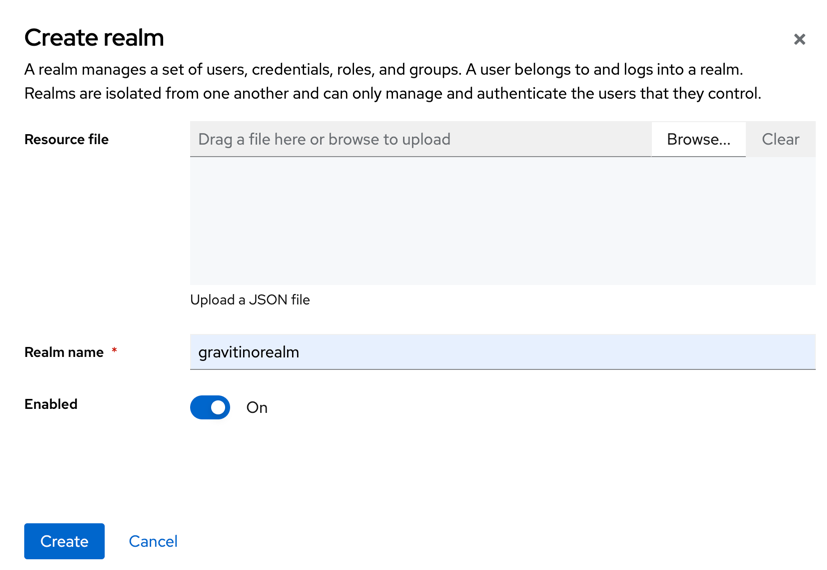
Create a realm for Gravitino
- Click Manage realms in the left-hand menu.
- Click Create realm button
-
Get the
gravitinorealmpublic key, which is the<the default signing key>in gravitino.conf Accesshttp://localhost:8080/realms/gravitinorealmin browser
-
Add users
Initially, the realm has no users. Use these steps to create a user:
- Verify that you are still in the gravitinorealm realm, which is next to Current realm.
- Click Users in the left-hand menu.
- Click Create new user.
- Fill in the form with the following values:
Username: usera, First name: any first name, Last name: any last name, Email: any email - Click credentials, fill in the Set password form with a password.
- Toggle Temporary to Off so that the user does not need to update this password at the first login.
You can now log in to the Account Console(gravitinorealm) to verify this user is configured correctly.
-
Register Gravitino in Keycloak
- Click gravitinorealm next to Current realm.
- Click Clients.
- Click Create client
- Fill in Client type:
OpenID ConnectClient ID:gravitino-client - Click Next
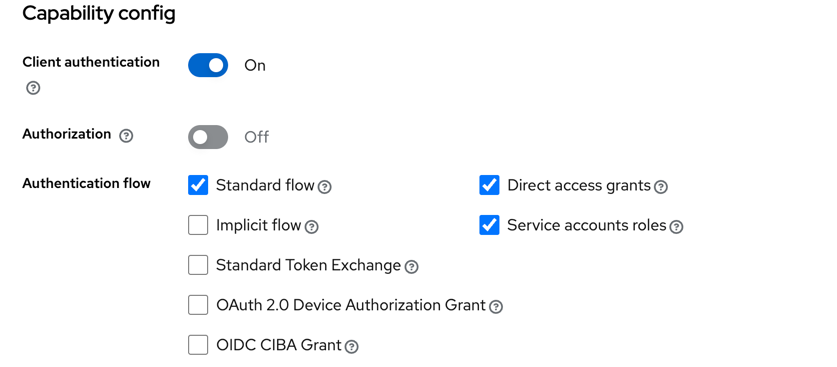
- Confirm that
Client authenticationStandard flowDirect access grantsService accounts rolesis enabled. - Click Next
- Set Valid redirect URIs to
http://localhost:8090/* - Set Web origins to
http://localhost:8090 - Click Save.
- Click Credentials tab page, get
Client Secret.
-
Refer to the Configurations and append the configurations to the conf/gravitino.conf.
gravitino.authenticators = oauth
gravitino.authenticator.oauth.serviceAudience = account
gravitino.authenticator.oauth.defaultSignKey = <the default signing key>
gravitino.authenticator.oauth.tokenPath = /realms/gravitinorealm/protocol/openid-connect/token
gravitino.authenticator.oauth.serverUri = http://localhost:8080
- Use client credentials to authenticate. The
access tokenis bound to a service account.
Get access token
curl \
  -d "client_id=gravitino-client" \
  -d "client_secret=FL20ezBgQAOlDQeNifzwliQ56wohhqNo" \
  -d "grant_type=client_credentials" \
  "http://localhost:8080/realms/gravitinorealm/protocol/openid-connect/token"
Use the access token to request the Gravitino
curl -v -X GET -H "Accept: application/vnd.gravitino.v1+json" -H "Content-Type: application/json" -H "Authorization: Bearer <access_token>" http://localhost:8090/api/version
- Use password to authenticate users. The openid scope returns an
id_tokenthat includes user information which can be used for consumer mapping and group mapping in future posts.
Get access token
curl \
  -d "client_id=gravitino-client" \
  -d "client_secret=FL20ezBgQAOlDQeNifzwliQ56wohhqNo" \
  -d "username=usera" \
  -d "password=Admin@123" \
  -d "grant_type=password" \
  -d "scope=openid" \
  "http://localhost:8080/realms/gravitinorealm/protocol/openid-connect/token"
Use the access token to make requests to the Gravitino server:
curl -v -X GET -H "Accept: application/vnd.gravitino.v1+json" -H "Content-Type: application/json" -H "Authorization: Bearer <access_token>" http://localhost:8090/api/version
For Gravitino Iceberg REST Service, the 'Accept: application/vnd.gravitino.v1+json' header is not required, you could use following command:
curl -v -X GET -H "Content-Type: application/json" -H "Authorization: Bearer <access_token>" http://127.0.0.1:9001/iceberg/v1/config
Enable Web UI OIDC login with Keycloak
The gravitino-client registered above is a confidential client used for machine-to-machine flows
(client credentials and password grants). The browser Web UI cannot use a confidential client because
it cannot keep a client secret, so the Web UI OIDC login requires a separate public client. A typical
Keycloak deployment therefore uses two clients:
| Client | Type | Used by | Keycloak settings |
|---|---|---|---|
gravitino-client | Confidential | Engines and machine flows (CLI, connectors, service accounts) | Client authentication on, Standard flow and Service accounts roles enabled |
gravitino-ui | Public | Browser Web UI OIDC login | Client authentication off, Standard flow enabled |
To register the public client for the Web UI:
- Click Clients in the
gravitinorealmrealm, then Create client. - Fill in Client type:
OpenID Connect, Client ID:gravitino-ui, then click Next. - Turn Client authentication off (this makes it a public client) and enable Standard flow. Click Next.
- Set Valid redirect URIs to
https://your-gravitino-server/ui/oauth/callback. - Set Valid post logout redirect URIs to
https://your-gravitino-server/*so logout can redirect back to the Web UI. - Set Web origins to
https://your-gravitino-server. - Click Save.
Then point the Web UI OIDC settings at this public client in conf/gravitino.conf:
gravitino.authenticators = oauth
gravitino.authenticator.oauth.provider = oidc
gravitino.authenticator.oauth.clientId = gravitino-ui
gravitino.authenticator.oauth.authority = http://localhost:8080/realms/gravitinorealm
gravitino.authenticator.oauth.scope = openid profile email
gravitino.authenticator.oauth.jwksUri = http://localhost:8080/realms/gravitinorealm/protocol/openid-connect/certs
gravitino.authenticator.oauth.tokenValidatorClass = org.apache.gravitino.server.authentication.JwksTokenValidator
gravitino.authenticator.oauth.serviceAudience = account
gravitino.authenticator.oauth.principalFields = preferred_username,email,sub
This example uses JWKS-based validation, where the server fetches Keycloak's public keys from
jwksUri automatically. It therefore does not need the static-key settings
(gravitino.authenticator.oauth.defaultSignKey, gravitino.authenticator.oauth.serverUri, and
gravitino.authenticator.oauth.tokenPath) shown in the machine-flow example above. JWKS validation
is recommended for Keycloak; only set the static-key settings if you intentionally use
tokenValidatorClass=org.apache.gravitino.server.authentication.StaticSignKeyValidator instead. The
same server configuration validates tokens from both the Web UI and the machine clients, so you do
not need a separate validator per client.
The Web UI OIDC login requires a secure context:
serve the Web UI over HTTPS or access it via localhost. See the secure-context note in the
OAuth Mode section for details.
Align the token issuer for split-hostname deployments
The iss (issuer) claim in a Keycloak token is built from the hostname the token was obtained
through. When the browser and the Gravitino server reach Keycloak through different hostnames (for
example, the browser uses a public URL while the server uses an internal Docker or cluster hostname),
the iss claim in the browser-issued token will not match the authority the server expects, and
validation fails with an error such as JWT iss claim value rejected.
To keep the issuer consistent regardless of which hostname is used to reach Keycloak, set a unified Frontend URL on the realm:
- Open the
gravitinorealmrealm, go to Realm settings > General. - Set Frontend URL to the canonical, externally reachable Keycloak base URL (for example,
https://keycloak.example.com). - Save, then use that same base URL in
gravitino.authenticator.oauth.authority(and the matchingjwksUri).
With the Frontend URL set, Keycloak stamps the same iss claim on every token regardless of the
hostname the request arrived on, so browser-issued and server-validated tokens agree.